
Fongo Works Logo

Voicemail

All member/extensions on your Fongo Works system have their own voicemail inbox. Voicemail messages can be checked multiple ways (described below) and each member/extension can have their own unique voicemail greeting (also described below).
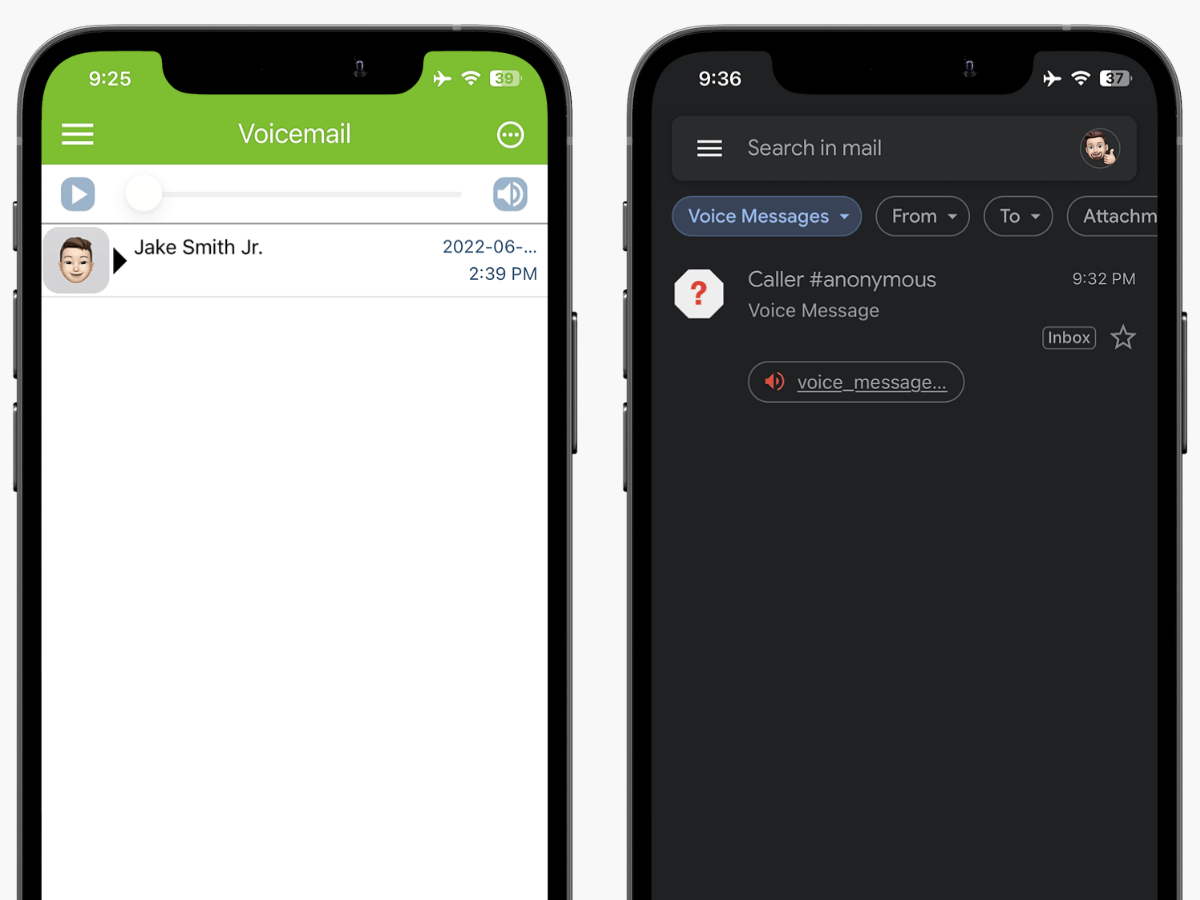
fongo works voicemail and email to voicemail

Checking Voicemails

Included with Free Signup
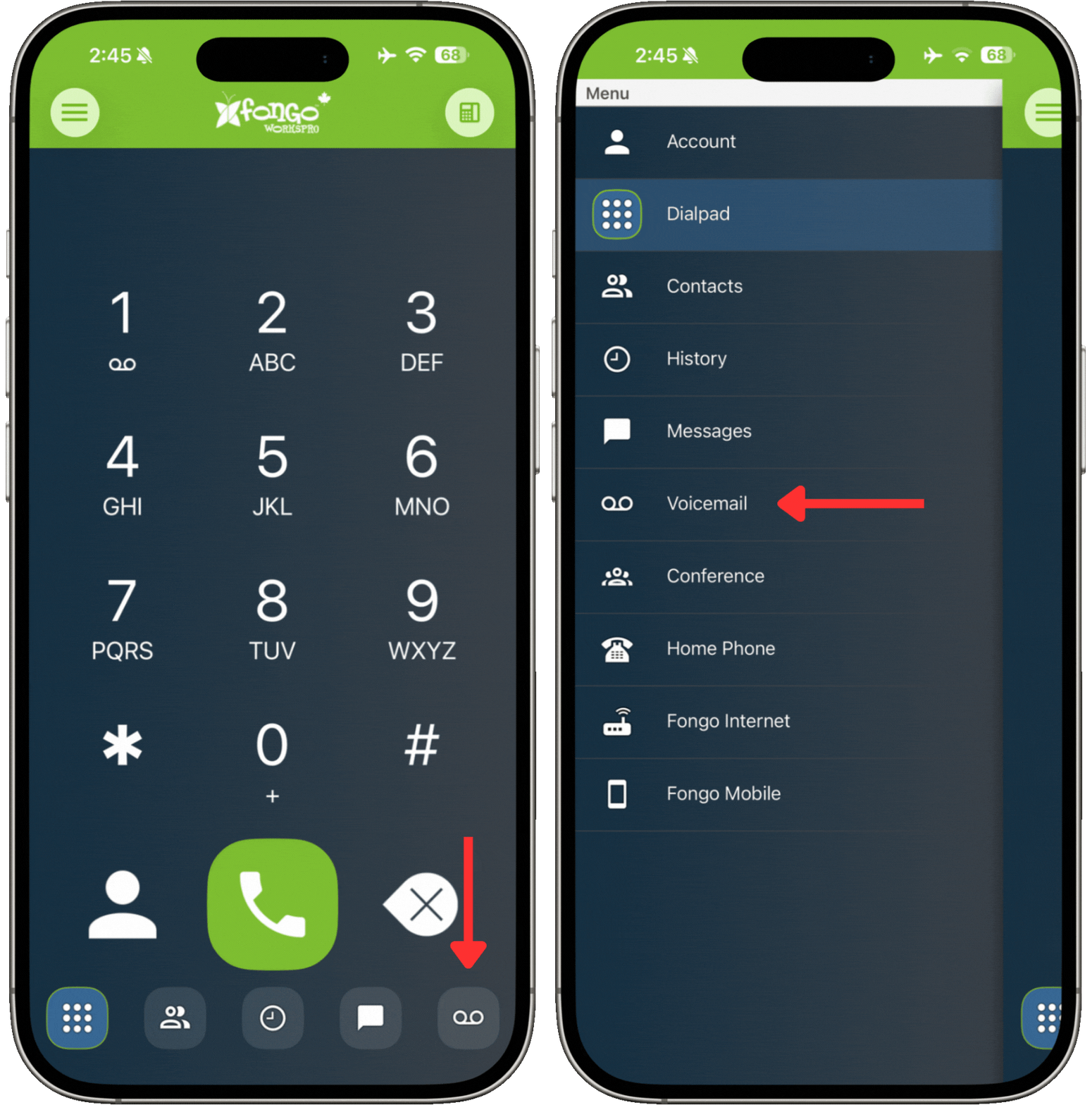
You can check your voicemails in-app on the Voicemail screen.

accessing voicemail on the fongo works app

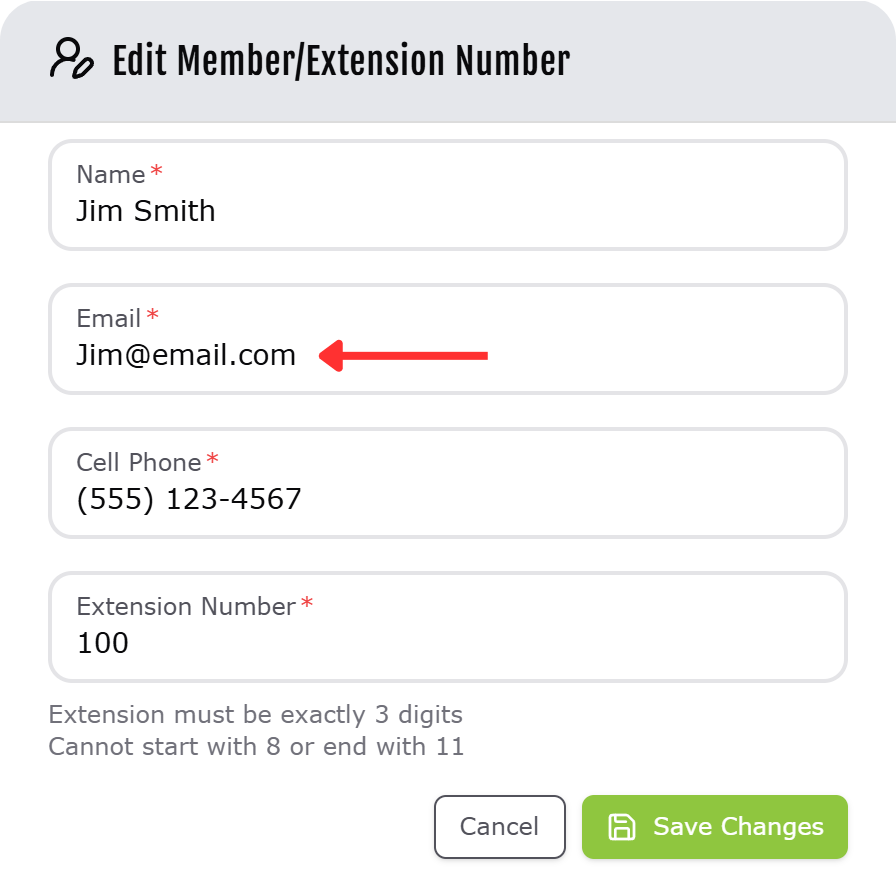
Fongo Works automatically forward each member’s voicemails to their email address.

  • example: If a voicemail message is left on Extension 100 (Jim Smith):the member's email

Modifying the member’s email address will also update the voicemail forwarding address.

Note: These emails are sent from the domain “@vm.fongoworks.com”. To ensure they are delivered to your inbox, please whitelist this domain in your email provider’s settings. Here’s how to whitelist.

Included with Pro Upgrade

You can check your voicemails on Pro Devices by dialing *98 or pressing the device’s voicemail button.

Voicemail Greetings

There are several different methods of editing your member/extension’s voicemail greeting.
Included with Free Signup

  1. From your Fongo Works app, dial into your voicemail box
    (*98 or long-press 1)
  2. Select “3” for personal options
  3. Select “3” for greetings
    • Press “1” for a extended absence greeting
    • Press “2” for a Personal Greeting
    • Press “3” to record your name
  4. Follow the voice prompts to record your desired greeting

Included with Pro Upgrade

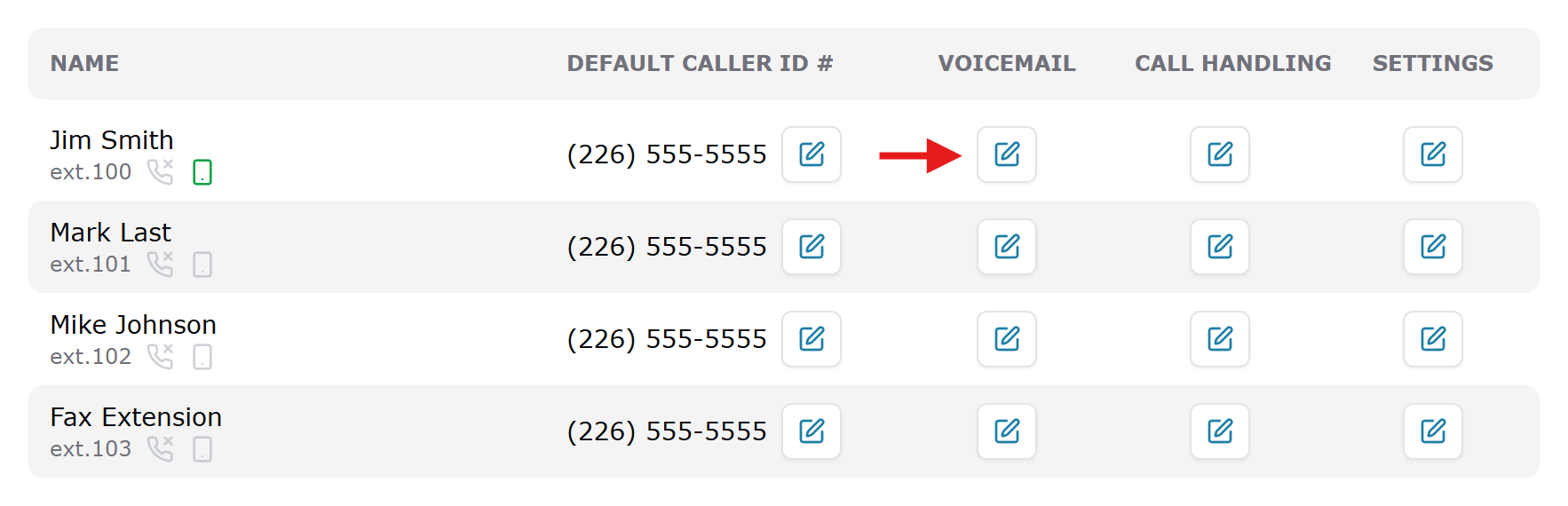
1. In the Members tab, click on the pencil icon under the Voicemail column for the desired member

voicemail member tab

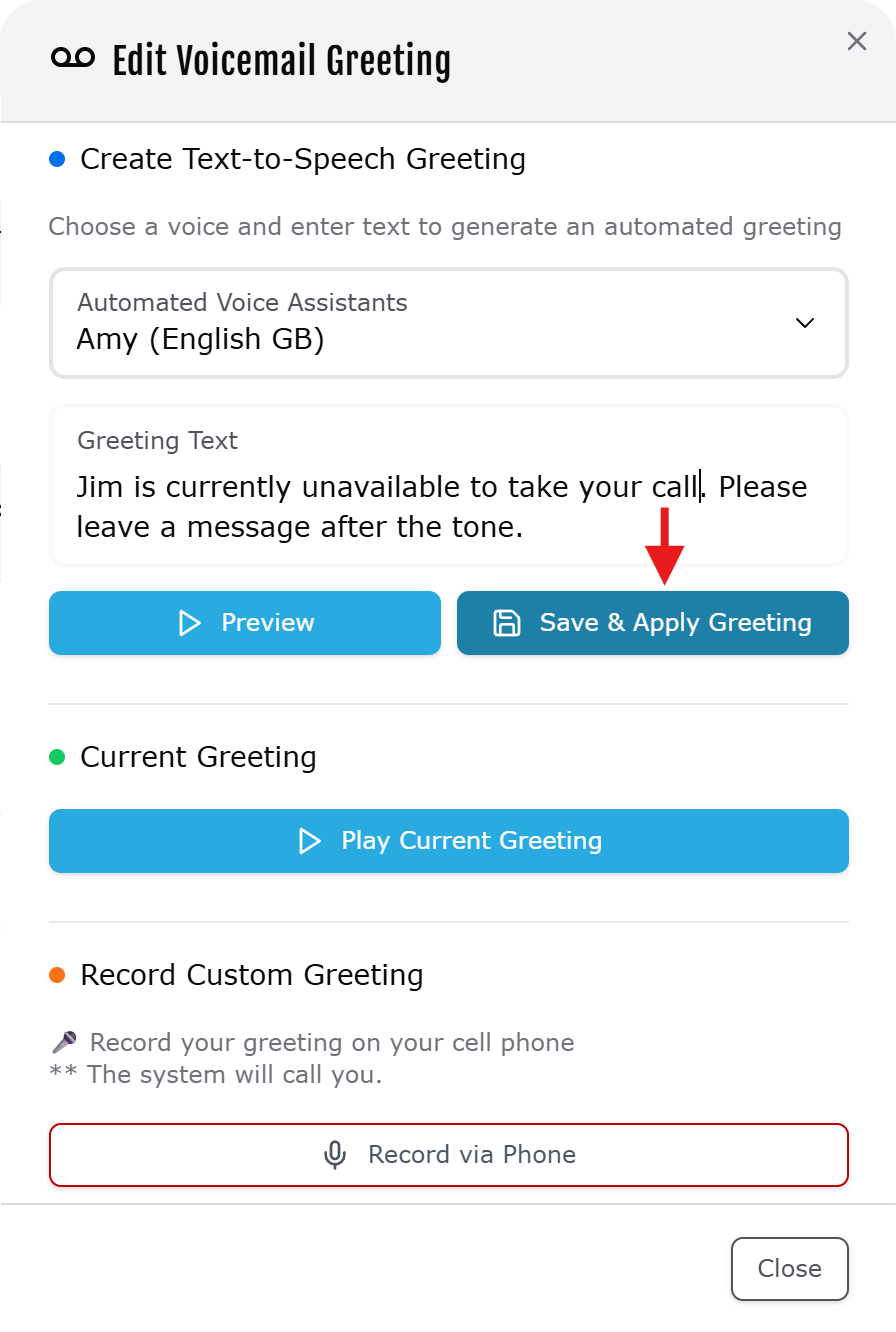
2. Edit the greeting text and choose between various automated voice assistants. Once you are satisfied with your new greeting, click Save & Apply Greeting.

voicemail generate greeting

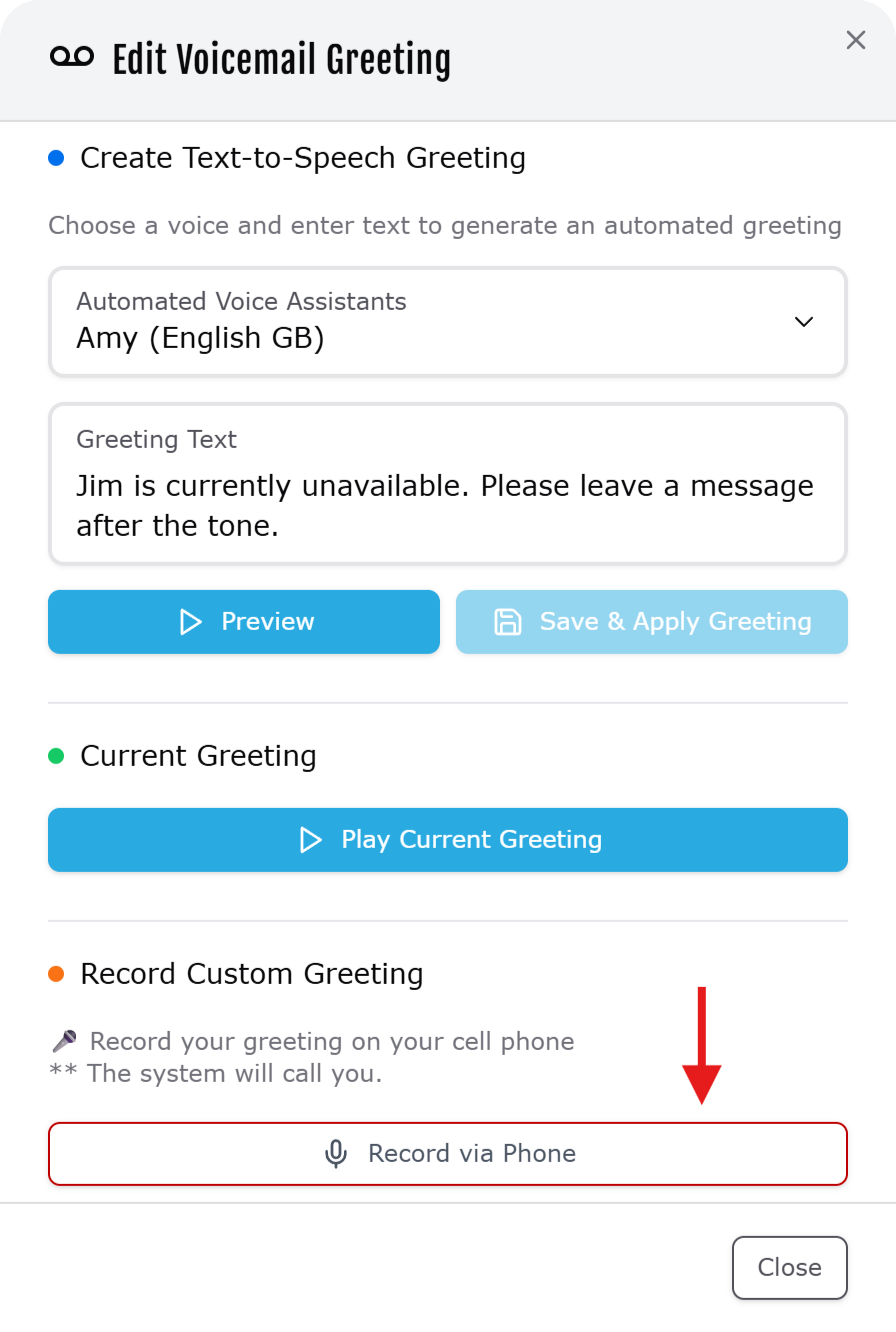
For this option, the system will call the member’s cell phone and prompt them to record their greeting.

  • In the online Dashboard, go to the Members tab
  • Click on the pencil icon under the Voicemail column for the desired member
  • At the bottom of the window, select Record via Phone
  • On your cell phone – answer the call and follow the prompts to record your greeting.

voicemail record greeting using cell phone

This option requires the use of a Fongo Works Pro device.

  1. Dial *98 on the Pro device
  2. Select “3” for personal options
  3. Select “3” for greetings
    • Press “1” for a extended absence greeting
    • Press “2” for a full Personal Greeting
    • Press “3” to only record your name
  4. Follow the voice prompts to record your desired greeting

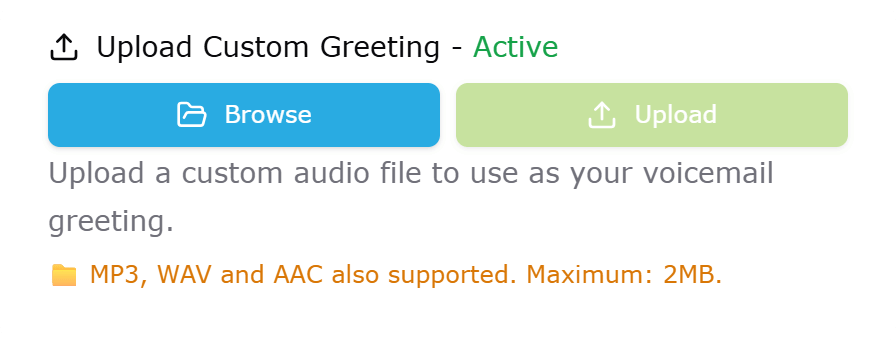
Send our support team an mp3 audio file using the link below. Please specify what extension the mp3 should be uploaded to.

Note: MP3 files must be less than 2 minutes in length and a maximum of 2 MB.

How To

Go Pro

LOGIN

Login to your Fongo Works dashboard at fongoworks.com

SHOP

Click the shop icon at the top of your dashboard.

CHECKOUT

Add items to your cart, then checkout when you’re ready to order.

Frequently Asked Questions

You can store approximately 20 MB of voicemail messages, which is approximately 42 minutes of messages.

If you reach the voicemail box’s capacity, you can delete all voicemails in the Fongo Works app or in the members tab of the online dashboard.

The voicemail emails will come from @vm.fongoworks.com. You may need to allow emails from this address on your email service, or check your junk folder. Learn about whitelisting an email address / domain here.